
Yes, Microsoft Bookings integrates with Outlook Calendar for Microsoft 365 work or school accounts, syncing availability in real time to block double-bookings and streamline appointment management.
If your team relies on booked appointments, you know even one double-booking can hurt customer trust. I have seen this cost clinics, BPOs, and sales teams more than just time—missed revenue, longer queues, and frustrated clients.
Most businesses want scheduling tools that “just work together.” Yet, many struggle to connect Microsoft Bookings and Outlook Calendar, leading to manual workarounds and lost productivity. The real issue is not knowing what syncs, who is eligible, and how to fix common failures.
In this guide, I’ll walk you through the practical steps, share front-line scenarios, and offer proven ways to automate and unify your scheduling—so your calendar always reflects reality.
Why Microsoft Bookings and Outlook Calendar Integration Matters
Getting Microsoft Bookings to sync with Outlook Calendar is not about convenience—it is about operational accuracy and trust. When calendars become fragmented, support managers and CX leaders see immediate impacts.
Meeting overlap and manual schedule juggling leave your team scrambling. For clinics, BPOs, or field service teams, this means customer frustration and lost appointments. In my experience, integrated calendars form the backbone of service predictability and efficiency.
When Bookings and Outlook work together, your team’s availability is always up to date. Double-bookings drop, no-shows are easier to manage, and staff can focus on delivering service—not fixing calendar errors. This is how great customer experience begins.
How Microsoft Bookings Integrates with Outlook Calendar
Microsoft Bookings connects to Outlook Calendar for Microsoft 365 work and school accounts. The integration enables real-time syncing of staff availability, blocking booked slots in both systems. It supports notifications, appointment updates, and shared mailbox management.
Most organizations use Bookings as an external-facing tool for clients to schedule slots. Outlook remains the central calendar for internal users. The integration bridges these, making any booked appointments immediately visible and blocking double-booking risks.
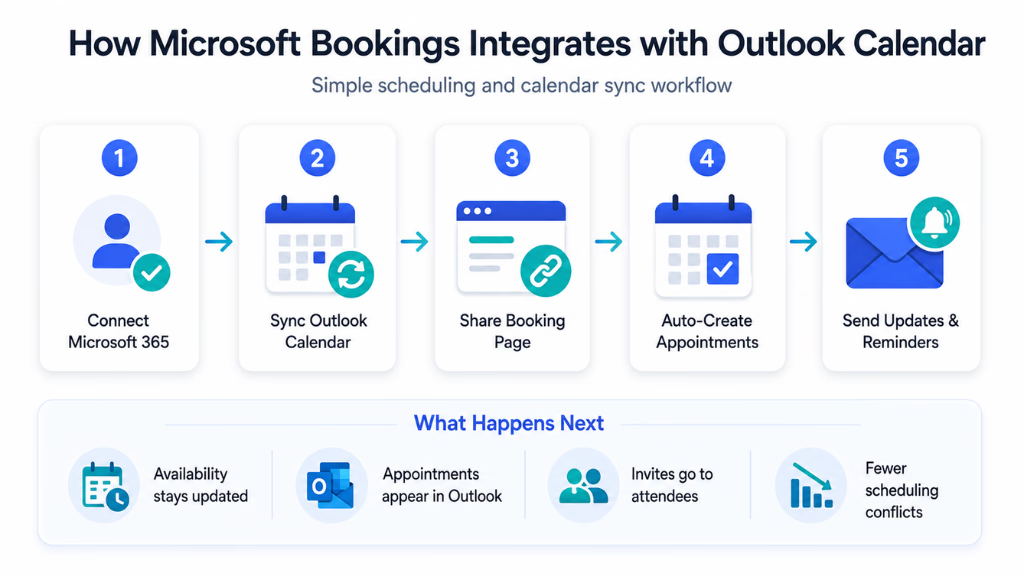
Let’s break down the essential capabilities, key eligibility criteria, common use cases, and how the data flows.
Key Features of the Integration
Bookings-Outlook integration offers these practical features:
- Real-Time Availability Sync: Bookings checks every staff member’s Outlook calendar before confirming a slot.
- Automatic Event Blocking: When a slot is booked in Bookings, it gets blocked in Outlook, and vice versa.
- Shared Resource Coordination: Teams can book shared rooms or resources and see conflicts blocking out.
- Notifications and Invites: When an appointment is set, both staff and clients get emails, and events appear in Outlook and Bookings.
The sync works only for Microsoft 365 work or school accounts. Personal Outlook.com accounts are not supported. Event privacy is respected—only the time block syncs, not the event details, unless allowed.
Setting Up Bookings-Outlook Calendar Sync
Setting up integration is straightforward if you have admin rights and eligible accounts:
- Admin Prerequisites: Only Microsoft 365 work/school accounts are eligible. Staff must be in Azure Active Directory.
- Staff Calendar Sync: In Bookings, add staff. Under “Events on personal calendar affect availability,” toggle ON.
- Availability Settings: Define bookable hours in Bookings and confirm Outlook calendar sharing permissions.
- Shared Mailboxes: If you use group calendars or shared resources, assign proper mailbox access.
- Testing: Book a slot via Bookings. Check if it blocks the slot in the relevant Outlook calendar.
I have seen confusion arise when staff accounts are incorrectly set up or not all required permissions are granted. Always confirm with IT or your admin center if you are unsure.
Managing Advanced Scenarios
Many organizations deal with more complex scheduling:
- Multiple Calendars: Syncs only one default calendar per staff. Shared or secondary calendars require admin configuration.
- Room/Resource Booking: Use resource mailboxes in Outlook, then add as staff in Bookings. Note: Not all features (like reminders) apply to resources.
- Teams and Locations: For group events or clinics with multiple locations, use Bookings services with required staff selection. The sync respects collective availability.
The mistake I see often is over-relying on manual calendar blocks or assuming Bookings checks more than the default Outlook calendar. Ensure settings map to real-world scheduling.
Troubleshooting Integration Challenges
Integration issues can cause chaos. These are the most common and how I handle them:
- Sync not working: Often a permissions or cache issue. Start by checking if the staff account is a Microsoft 365 work/school account.
- Events not blocking time: Confirm “Events on personal calendar affect availability” is ON in Bookings, and that calendar sharing is enabled.
- Personal Outlook not syncing: Only work/school accounts are supported—this is non-negotiable.
- Room/resource events missing: Double-check mailbox permissions and that rooms/resources are added as staff, not regular users.
If you hit persistent problems, test with a different user or check logs under the Exchange Admin Center. Resolving these early prevents staff frustration and customer confusion.
Best Practices for Reliable Bookings and Outlook Calendar Integration
Many teams overlook basic set-up fundamentals, leading to sync errors and trust issues. Here are the patterns I encourage operations and support leaders to follow:
- Make sure all staff use the right Microsoft 365 accounts, not personal Outlook.com.
- Keep roles and permissions clearly defined, with admin oversight.
- Avoid manual calendar blocks—let Bookings handle all bookable time.
- Regularly test the integration by booking sample appointments.
- Use a simple onboarding checklist for new staff:
- Is their calendar syncing?
- Are bookable hours reflecting accurately?
- Can clients see true availability?
A disciplined approach keeps calendars accurate, staff prepared, and customer trust high.
Streamlining Appointment Workflows Across Channels with Automation
The native Bookings-Outlook integration helps prevent double-bookings, but real efficiency comes from automating workflows around those appointments. This is especially true for large teams—clinics, support centers, recruitment, or BPOs—dealing with heavy inbound appointments and manual follow-ups.
In my experience, connecting your booking system with a platform like Commplify extends the value further:
- Automated Follow-Ups: Trigger reminder emails or SMS as soon as a booking is created, or send missed appointment notifications across any channel—chat, WhatsApp, or phone.
- Unified Conversation and Calendar Data: See all appointment communications in one place, regardless of if they started as an email, chat, or call.
- Reduced No-Shows and Missed Opportunities: Automated nudges based on the actual calendar event data drive higher attendance and faster rescheduling.
For CX and operations leaders, this means less manual chasing, better resource allocation, and higher customer satisfaction scores. When appointment data and all communication channels connect, you keep the customer journey intact from booking to follow-up.
Conclusion
Getting Microsoft Bookings to integrate with Outlook Calendar is essential for organizations that rely on appointments and tight scheduling. Sync failures lead to double-bookings, lost revenue, and customer frustration.
The practical steps outlined here help your team build reliable, real-time calendar sync—reducing manual effort and operational surprises. A unified approach, regular testing, and thoughtful permissions are central to ongoing success.
Automation platforms like Commplify take it a step further. They let you tie every appointment to the right workflow, channel, and conversation—reducing manual work and improving follow-up across every customer touchpoint.
As customer journeys stretch across more channels, combining calendar integration with omnichannel automation is no longer a luxury. It’s how modern CX leaders avoid chaos and deliver predictable, trusted service.
FAQs
How do I sync my Microsoft Bookings calendar with my Outlook calendar?
Enable Bookings in Microsoft 365, assign staff with work accounts, ensure “Events on personal calendar affect availability” is turned on, and confirm permissions in both Bookings and Outlook.
Can clients see my real-time Outlook calendar availability via Bookings?
Yes. Clients see only your available time slots as Bookings checks your Outlook Calendar for free or busy times during booking.
Does Bookings work with Outlook for personal (non-work) accounts?
No. Microsoft Bookings only syncs with Outlook calendars tied to Microsoft 365 work or school accounts, not personal Outlook.com accounts.
How do I prevent double-booking with Microsoft Bookings and Outlook?
Keep both tools integrated. Bookings automatically blocks busy times from your Outlook calendar, so only free slots appear during customer booking.
Can I add meeting room locations from Outlook to Bookings appointments?
Yes. Add meeting rooms as resource mailboxes in Outlook, then add them as staff in Bookings so clients can book specific rooms.
Why are my Outlook events not blocking time in Bookings?
Check if the staff account is using a Microsoft 365 work or school calendar, verify calendar sync settings in Bookings, and ensure permissions are active.
What permissions are needed to sync staff calendars in Bookings?
Staff must have Microsoft 365 work or school accounts and accept the Booking invitation to allow Bookings to sync with their Outlook calendars.
Can I use Bookings to book meetings for more than one staff member?
Yes. You can configure services in Bookings to require one or multiple staff for an appointment. Availability reflects only when all selected staff are free.
This page was last edited on 5 August 2026, at 12:32 am