To connect Calendly and Google Meet: Link Google Calendar to Calendly, set Google Meet as the event location, and test with a booking. Automated video links are sent to hosts and invitees. Troubleshoot sync errors and automate reminders for best results.
Every customer-facing team knows the pain of missed video calls and manual meeting invites. You invest in great tools, yet double-bookings and invite confusion persist.
I have seen support, sales, and operations teams struggle with fragmented calendars and inconsistent video meeting links, especially as businesses grow. This leads to wasted time, frustrated clients, and lost opportunities.
The right integration—Calendly plus Google Meet—makes video scheduling fast, reliable, and low-effort. This guide covers step-by-step Calendly Google Meet integration, troubleshooting, and advanced workflow automation, so you can deliver better meetings and stronger CX every time.
Why Integrating Calendly with Google Meet Improves Scheduling Efficiency
Calendly and Google Meet integration lets you automatically generate Google Meet links for every new meeting booked through Calendly. This takes manual effort out of the process and ensures everyone gets a working video link with each invite.
In my experience, automating video conferencing links cuts down admin hours, reduces no-shows, and creates a more reliable, professional customer journey. Teams stay focused on core work instead of chasing down missing invites or rescheduling due to human errors. Fewer clicks, fewer steps, more predictable CX results.
How to Set Up Calendly Google Meet Integration: Step-by-Step
Setting up the Calendly Google Meet integration is straightforward, but it is important to configure the correct Google account, calendar, event type, and meeting location. Follow these steps carefully to make sure Google Meet links are created automatically for your Calendly bookings.
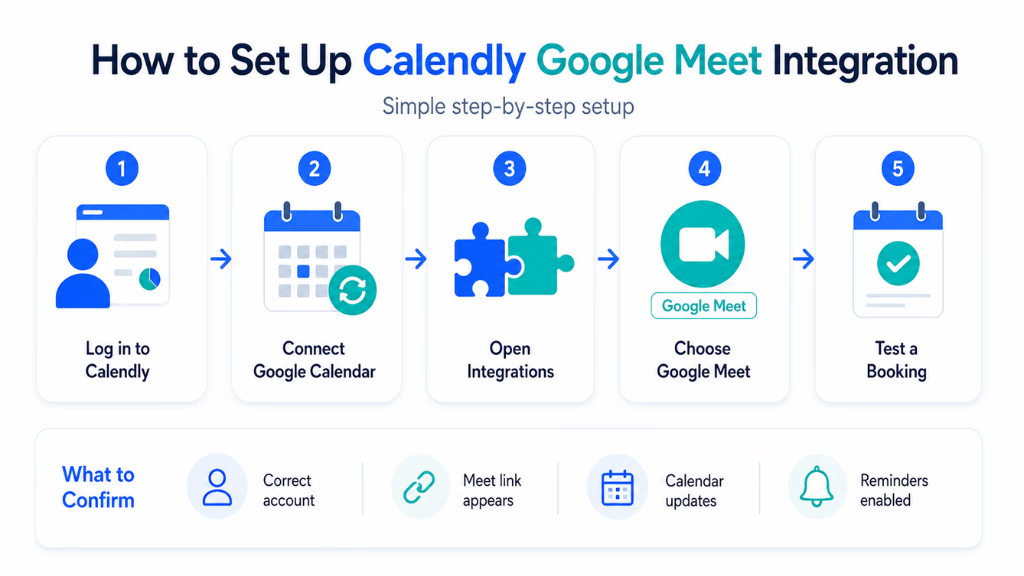
Step 1: Sign In to Your Calendly Account
Start by logging in to your Calendly account.
Once you are inside the dashboard, make sure you are using the Calendly account that you normally use for business meetings, customer appointments, sales calls, interviews, or consultations.
If you work with multiple Calendly accounts, confirm that you are editing the correct workspace before continuing.
Step 2: Connect Your Google Calendar
Calendly needs access to your Google Calendar so it can understand your availability and add scheduled meetings to the correct calendar.
Go to your Calendly calendar settings and connect the Google account you want to use.
During this process, Google may ask you to approve certain permissions. These permissions allow Calendly to check your availability and manage scheduled events.
After connecting the account, verify that the correct Google Calendar is selected.
For example, if you have:
- A personal calendar
- A work calendar
- A sales calendar
- A team calendar
Make sure Calendly is using the one where you want scheduled meetings to appear.
This step is important because Calendly uses your connected calendar to prevent double-booking.
For example, if your Google Calendar already shows a meeting from 2:00 PM to 3:00 PM, Calendly can automatically remove that time from your available booking slots.
Step 3: Connect Google Meet with Calendly
Next, go to the integrations section inside Calendly.
Look for Google Meet and select the option to connect it.
Sign in with the Google account you want to use for video meetings.
Ideally, the Google account connected to Google Meet should be the same account connected to your Google Calendar.
This helps keep your meeting links, calendar events, and booking details organized under one account.
During the connection process, review the permissions requested by Google and approve them if you are comfortable proceeding.
Once the connection is complete, Google Meet should become available as a meeting location inside your Calendly event settings.
Step 4: Choose the Calendly Event Type
Go back to your Calendly dashboard and select the event type you want to connect with Google Meet.
For example, you may have event types such as:
- 15-Minute Discovery Call
- 30-Minute Consultation
- Product Demo
- Sales Meeting
- Customer Support Session
- Candidate Interview
- Customer Onboarding Call
Choose the specific event that should automatically generate a Google Meet link.
If you want Google Meet to be used for multiple Calendly events, you may need to update each event type separately.
Step 5: Open the Event Location Settings
Inside the selected event type, find the section where Calendly allows you to define the meeting location.
This tells Calendly how the meeting will take place.
Depending on your setup, available meeting locations may include:
- Google Meet
- Zoom
- Microsoft Teams
- Phone call
- Physical location
- Custom location
Select Google Meet as the meeting location.
Once selected, Calendly will know that every new booking for this event should include Google Meet conferencing information.
Step 6: Configure Your Meeting Availability
Before publishing the event, review your availability settings.
Choose the days and times when people are allowed to book meetings with you.
For example:
Monday–Thursday: 10:00 AM–5:00 PM
Friday: 10:00 AM–2:00 PM
You can also customize settings such as:
- Minimum scheduling notice
- Maximum number of meetings per day
- Available booking window
- Meeting duration
- Buffer time before meetings
- Buffer time after meetings
These settings are useful if you frequently manage several Google Meet calls in one day.
For example, adding a 15-minute buffer after each meeting gives you enough time to complete notes or prepare for the next call.
Step 7: Add Booking Questions
You can improve the quality of your meetings by collecting information before the call.
Inside your Calendly event settings, add questions that invitees should answer while booking.
For a sales consultation, you might ask:
- What company do you work for?
- What challenge are you trying to solve?
- Which service are you interested in?
- What would you like to discuss during the meeting?
For customer support, you could ask:
- What problem are you experiencing?
- Which product are you using?
- What is your account or company name?
This information helps you prepare before joining the Google Meet session.
Step 8: Configure Notifications and Reminders
Next, review how participants will receive meeting information.
Calendly can send booking confirmations and reminders depending on your configuration and plan.
Make sure the confirmation includes the scheduled date, time, and meeting information.
You may also configure reminders before the appointment.
For example:
24 hours before: Meeting reminder
1 hour before: Final reminder
These reminders can help reduce missed appointments and improve meeting attendance.
Step 9: Save and Publish the Event
After configuring the event location, availability, booking questions, and notifications, save your changes.
Your Calendly event should now be ready to use with Google Meet.
Copy the booking link and place it wherever customers or prospects are likely to schedule meetings.
You can add it to:
- Your website
- Contact page
- Sales landing page
- Email signature
- LinkedIn profile
- Sales outreach emails
- Customer support messages
- Social media profiles
Step 10: Make a Test Booking
Do not immediately start sending the booking link to customers.
First, test the entire process yourself.
Open your Calendly booking page in a private or incognito browser window.
Select an available time and complete the booking process as if you were a customer.
After booking, check the following:
- Did the meeting appear in Google Calendar?
- Was a Google Meet link created?
- Is the meeting date correct?
- Is the meeting time correct?
- Did the confirmation include the meeting details?
- Can both host and invitee access the Google Meet link?
Testing helps identify configuration problems before real customers start booking.
Step 11: Test Rescheduling
After completing your first test booking, try rescheduling the meeting.
Choose another available time and verify whether the calendar event updates correctly.
Check whether:
- The new date appears in Google Calendar.
- The new time is correct.
- The participant receives updated information.
- The Google Meet details remain connected to the event.
This is particularly important for sales teams, recruiters, and consultants because customers frequently reschedule appointments.
Step 12: Test Meeting Cancellation
You should also test the cancellation process.
Cancel the test booking and check whether the event is updated or removed from the appropriate calendar.
Verify that the participant receives the expected cancellation information.
Testing booking, rescheduling, and cancellation gives you confidence that the entire Calendly Google Meet integration is working properly.
Key Considerations and Best Practices for Reliable Video Meeting Scheduling
To ensure smooth booking flows and protect sensitive data, stay mindful of security and process best practices.
- Only connect work-specific accounts to maintain clean event records.
- Use role-based access controls for team and admin permissions.
- Verify plan limitations: Some advanced Calendly plans are required for team-based Google Meet integration.
- Always test your setup after any updates to Calendly, Google, or organizational permissions.
- Monitor invitee experience, not just admin view—feedback loops reduce missed meetings.
- Maintain clear guidelines for staff on setup, usage, and troubleshooting.
Simple practices here save hours in support tickets and prevent lost business.
Google Meet vs. Other Conferencing Integrations in Calendly
| Feature | Google Meet | Zoom | Microsoft Teams |
|---|---|---|---|
| Native calendar sync | Yes | Yes | Yes |
| One-click join link | Yes | Yes | Yes |
| Team management | Good | Good | Good |
| Common setup errors | Permissions | App token expiry | Account mismatch |
| Pricing differences | Some paid plans | Some paid plans | Some paid plans |
Streamlining Customer Communications with Unified CX Platforms
Once your Calendly and Google Meet are integrated, the next level is automation across all communication channels.
I have seen teams set up multi-channel reminders and follow-ups to reduce no-shows and automate post-meeting tasks. For example, after a demo is booked, a reminder goes out via SMS and WhatsApp, and upon completion, a support ticket or CRM update is triggered.
Platforms that unify this flow, like Commplify, connect your calendar tools with SMS, email, and chat—all in one dashboard. Customer messages, reminders, and follow-ups stay organized in a single inbox. This reduces manual work, ensures prompt action, and gives CX leaders real visibility.
If scaling CX reliability and minimizing admin workload is your goal, advanced workflow platforms tie the entire customer journey together.
Conclusion
A reliable Calendly Google Meet integration means fewer missed meetings and happier customers. It removes friction from scheduling, ensures each booking includes a valid video link, and limits confusion for teams and invitees.
Teams who automate reminders, updates, and post-meeting actions see gains in show rates, support volume, and CX metrics. Integrating these with broader workflow automation, like intelligent triggers from platforms such as Commplify, is the next frontier I see for enterprise operations and customer teams.
CX and operations leaders who connect these dots are set to create a more responsive, error-resistant scheduling experience—and set a higher bar for digital customer journeys.
AI-driven CX is rapidly moving toward unified scheduling, reminders, and communication orchestration—the winners will be those who bridge fragmented workflows before their next big growth phase.
FAQs
How do I integrate Calendly with Google Meet?
Connect Google Calendar to Calendly, set Google Meet as the event location for your meeting type, and save. All new bookings will generate Google Meet links.
Why aren’t my Google Meet links showing up in Calendly invites?
This usually happens if Google Calendar or Meet is not connected, or permissions have expired. Reconnect your Google account and ensure Meet is selected as the event location.
Can I use Google Meet integration on all Calendly plans?
Google Meet integration is supported on most paid Calendly plans. Some team or advanced features may require a Teams or Enterprise plan.
How does Calendly send Google Meet links to invitees?
Calendly automatically includes the Google Meet link in the calendar invite and email confirmation for each new booking.
What should I do if Google Meet is missing for team users?
Have each team member connect their Google account in Calendly settings and set Google Meet as their event location.
How do I stop unwanted Google Meet links being added to invites?
Edit your event type in Calendly and choose another location option, such as phone call or in-person meeting.
Is there a way to add alternative video conferencing tools?
Yes, Calendly also supports Zoom, Microsoft Teams, and Webex integrations. Set your preferred provider under event settings.
How do I ensure Google Meet works for all users in my org?
Require all team members to connect their Google accounts, verify permissions, and do routine integration checks as part of onboarding and quarterly IT audits
This page was last edited on 5 August 2026, at 12:09 am